Add Menu Items to Your POS in Under 1 Minute (No Typing Required)
Ask any restaurant or cafe owner what they dread most about switching to a new billing system, and most will say the same thing: "typing in the entire menu." Fifty, eighty, sometimes over a hundred items - each one needing a name, a price, a category, and a veg/non-veg tag entered by hand. It is the single biggest reason owners delay setting up their POS properly, and it usually eats up an entire afternoon (or gets left half-done).
Here is the good news - if you already have a printed menu card or a menu board, you do not need to type any of it.
Three Ways to Add Menu Items
Shybiz gives you three ways to build your menu, depending on what you already have:
- Manual Entry - type in one item at a time. Best for a handful of new items or edits.
- CSV Import - upload a spreadsheet if your menu already exists in Excel.
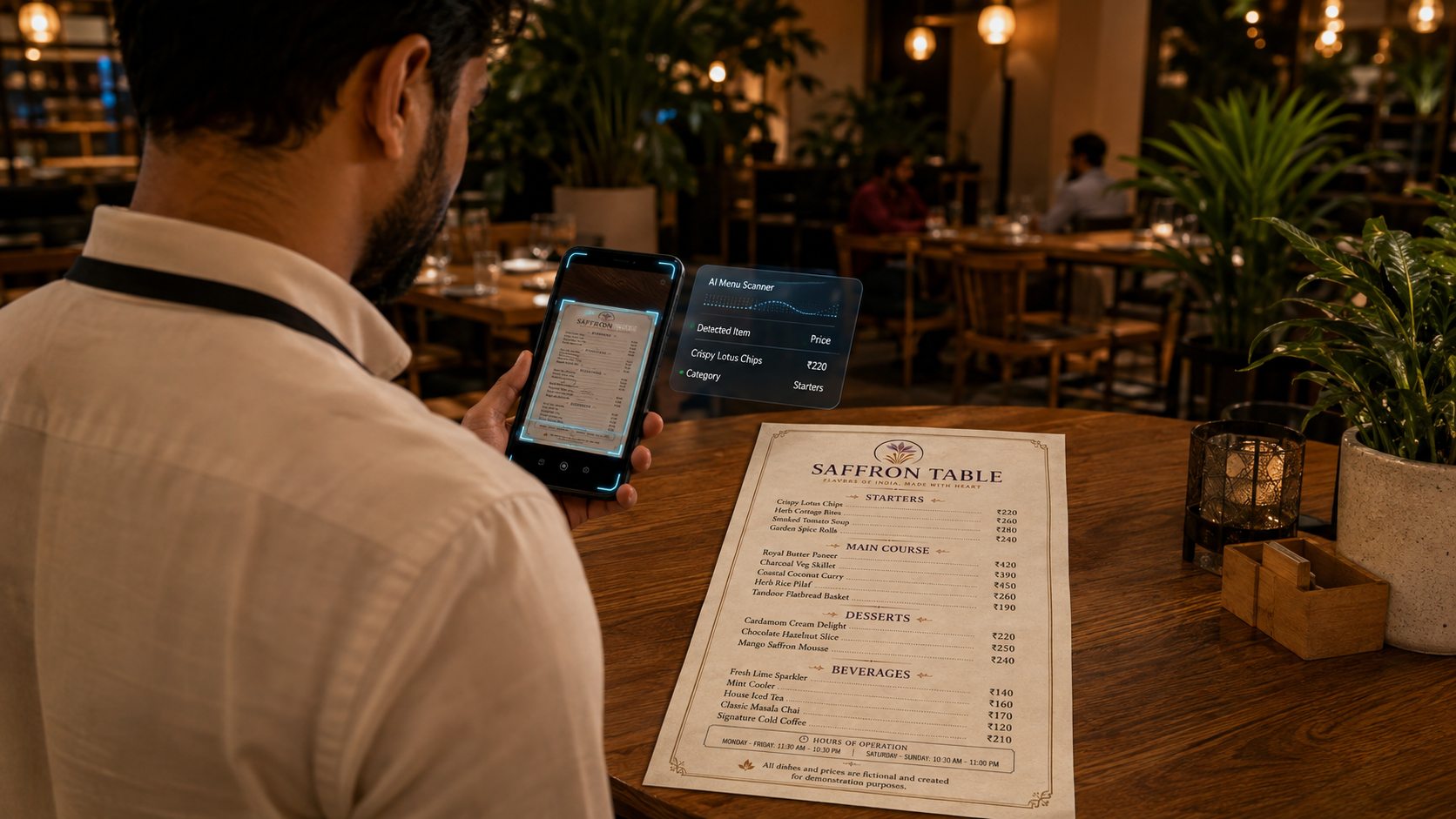
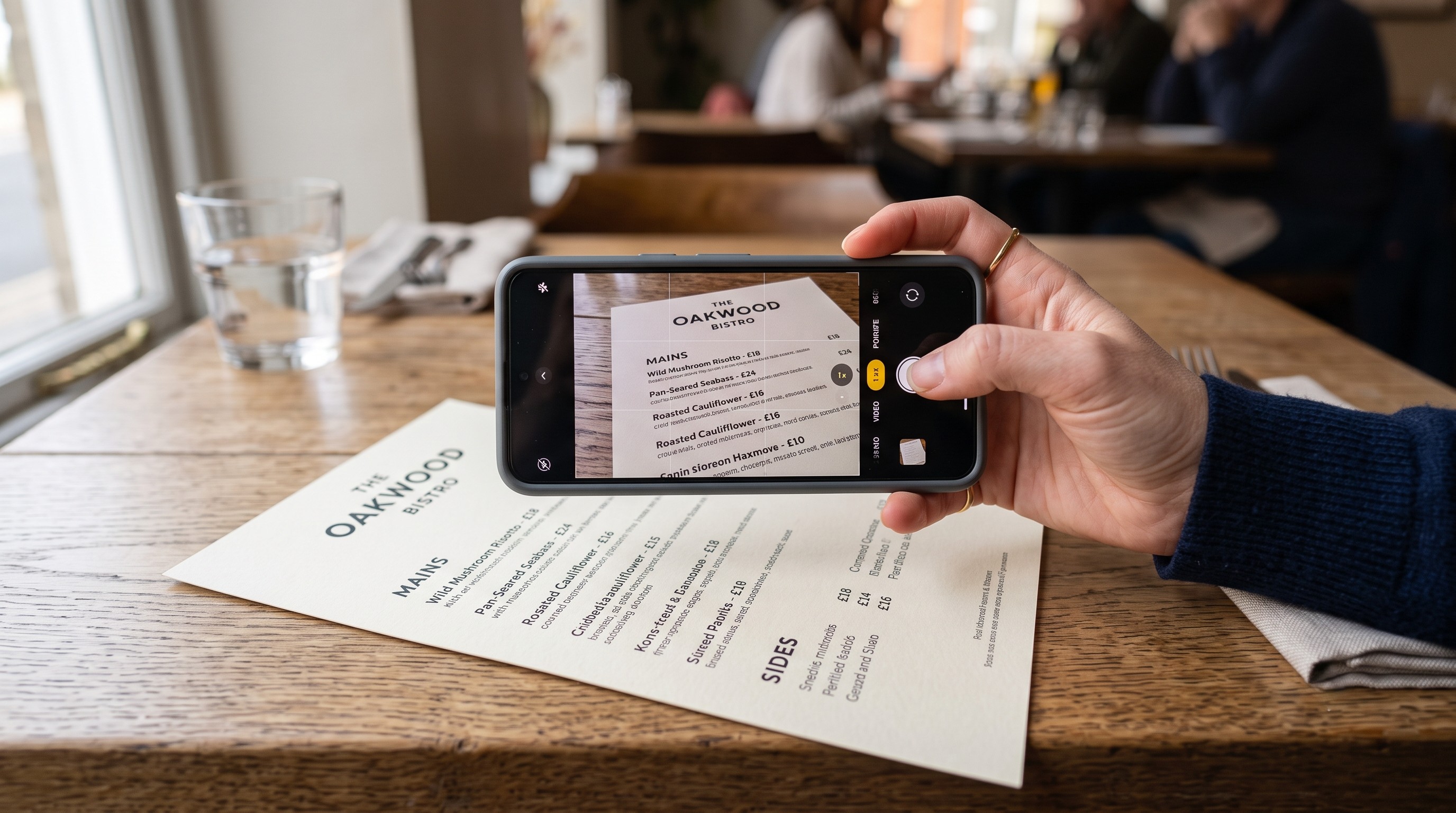
- AI Photo Scan - photograph your existing printed menu card or board, and the AI reads it for you.
For most first-time setups, the AI scan is the fastest by a wide margin - because almost every restaurant or cafe already has a printed menu card sitting at the counter.
How the AI Menu Scanner Works
On the Add Item page, there is a "Scan Menu with AI" option right above the item form. Tap it, and you get two choices:
- Take Photo - opens your camera directly (works inside the Shybiz app or in a mobile browser)
- Choose File - pick an existing photo of your menu from your gallery
Once you snap or select the photo, the AI reads it in seconds and returns a full list - item name, price, category, and a veg/non-veg tag for every single item it found. A single photo of a busy printed menu can easily produce 50+ items, and every one shows up as an editable row, ready to review.
Nothing Gets Saved Without Your Approval
This is the part that makes the feature safe to trust: the AI never writes anything directly to your inventory. Every extracted item lands in a review table first - name, price, and category are all editable inputs, and the veg/non-veg tag is a one-tap toggle if the AI got it wrong. You check everything, fix anything that needs fixing, and only then hit Save.
If an item on your menu already exists in your inventory, the scanner flags it with a "Duplicate" badge and a light highlight - so you will not accidentally create the same item twice. You can still edit that row (maybe the price changed since you last updated it), the system just makes sure you notice.
Got a Multi-Page Menu?
If your menu card has multiple pages or your menu is spread across two boards, use "Scan Another Page" - the app keeps everything from the first scan in the table and simply adds the new page's items on top, so you review the whole menu in one sitting instead of saving in batches.
What If I Close the App Halfway Through?
A scanned-but-unsaved menu is automatically kept for you for 24 hours. If you get interrupted - a customer walks in, or you accidentally hit back - reopening the scanner shows a banner with your last scan ready to pick up right where you left off, instead of making you photograph the menu all over again.
The Time Difference, In Real Numbers
Typing in a 60-item menu by hand - name, price, category, veg/non-veg for each - realistically takes 45 to 60 minutes, even for someone who knows the system well. Scanning the same menu takes a few seconds for the AI to read it, plus a couple of minutes to glance through the results and fix anything that needs correcting. What used to be an afternoon task becomes a coffee-break task.
Getting the Best Results
- Photograph the menu in good, even light - avoid glare on laminated cards
- Keep the card flat and fully in frame
- If your menu has printed veg/non-veg symbols, the AI reads those directly; if not, it makes its best guess from the item name, so it is worth double-checking that column before saving
Bottom Line
Setting up your menu should not be the reason you delay going digital. Photograph the menu card you already have, review the results, and your inventory is ready - often in under a minute of actual work. It is one small feature, but it removes the single biggest friction point in getting a new restaurant or cafe fully set up on a POS.